Two Claude Code Accounts on One Computer: The Complete Isolation and Shared Skills Setup Guide
If you build custom agent skills or author complex prompts, you quickly hit a common constraint: you need more than one Claude Code account on the same workstation. Perhaps you manage an enterprise client account alongside your personal open-source profile, or you need to test team rate limits without burning your personal subscription tier. Switching between accounts should not mean logging in and out of the browser ten times a day or duplicating your skill repository across multiple directories.
Claude Code resolves this cleanly through an environment variable named CLAUDE_CONFIG_DIR. By pointing different editor instances or terminal tabs to distinct configuration directories, you can operate two or more completely independent Claude Code personas simultaneously. The key architectural trick is knowing what must stay strictly isolated, and what can be safely shared across accounts using filesystem junctions.
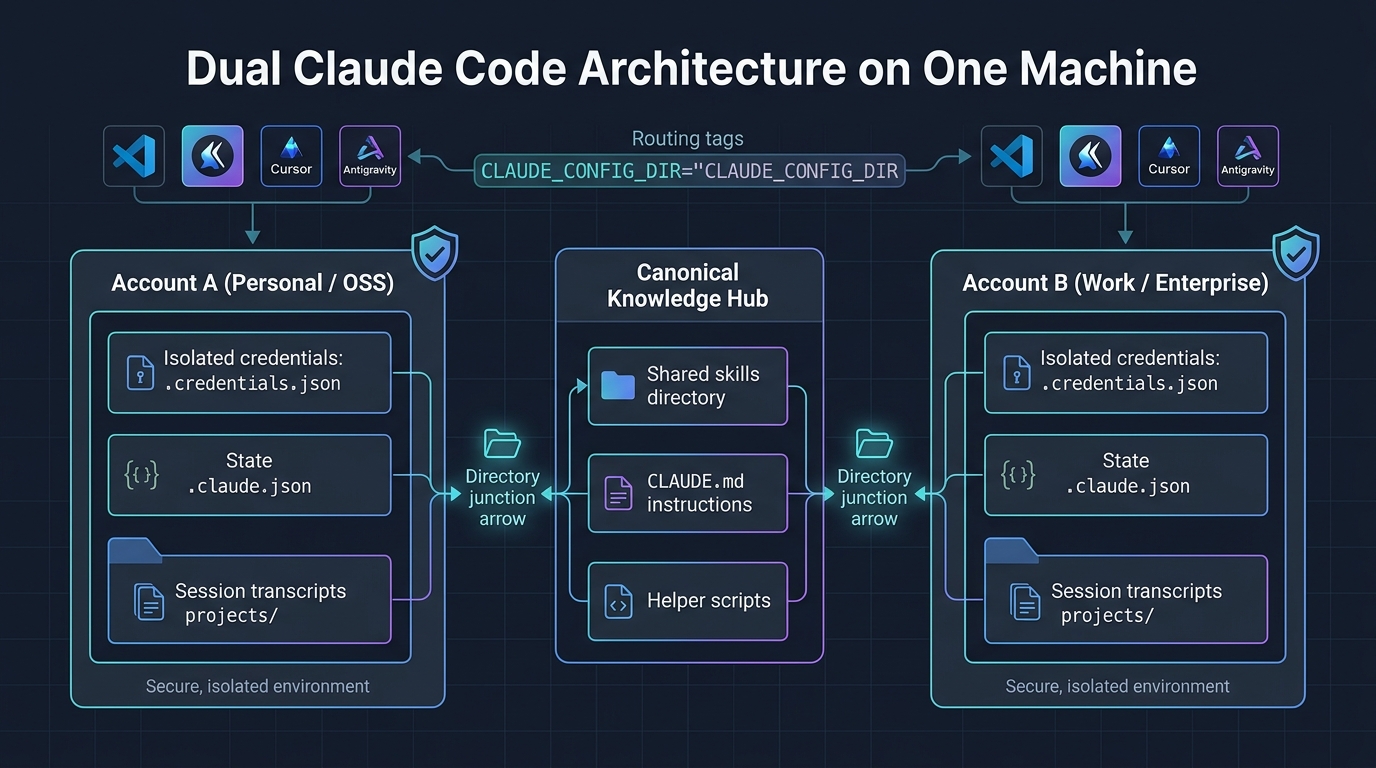
1. The Core Architecture: Isolation vs Shared Knowledge
Every Claude Code installation stores its internal state in a configuration folder. By default on Windows, this lives at %USERPROFILE%\.claude (or ~/.claude on macOS and Linux). When you set CLAUDE_CONFIG_DIR, you redirect Claude Code to read and write all state in an alternate location.
To avoid silent corruption or credential leakage, you must draw a hard boundary between identity state and shared knowledge:
- Never share across accounts: .credentials.json (OAuth tokens), .claude.json (account state and local MCP registrations), settings.json (user preferences and hook choices), projects/ (conversation transcripts and session logs), and plugins/ (mutable cache).
- Safely share across accounts: skills/ (your custom SKILL.md packages), CLAUDE.md (global project instructions), and helper scripts or CLI utilities.
If you already have a working Claude Code profile in your user directory, you do not need to move it. Keep the default profile as Account A, and create a single new folder for Account B. On our test workstation, the default profile handles primary development, while a second dedicated directory manages client testing.
2. Directory Layout and Storage Planning
Choose a dedicated root folder accessible to your user account. Here is a clean, production-tested folder topology for Windows:
D:\Claude\
  accounts\
    personal\               Claude Code Account A
      .credentials.json     Created upon sign-in (keep private)
      .claude.json          Account state and MCP registrations
      settings.json         Account-specific settings
      CLAUDE.md             Import stub pointing to shared instructions
      skills\               Directory junction -> ..\..\shared\skills
      projects\             Account-specific session transcripts
    work\                   Claude Code Account B
      .credentials.json     Created upon work sign-in
      .claude.json
      settings.json
      CLAUDE.md
      skills\               Directory junction -> ..\..\shared\skills
      projects\
  shared\
    skills\                 Canonical skill folders (version-controlled repo)
    CLAUDE.md               Global instructions both accounts read
scripts\ Shared helper scripts and utilities3. Linking Shared Skills with Directory Junctions
Rather than copying your skills between account folders, use directory junctions on Windows or symbolic links on macOS and Linux. On Windows, directory junctions are superior to symlinks because they do not require elevated administrator privileges and behave as native filesystem pointers.
Close your code editors, create the directory structure, and create the junctions with PowerShell:
$sharedSkills = 'D:\Claude\shared\skills'
$accountA = 'D:\Claude\accounts\personal'
$accountB = 'D:\Claude\accounts\work'

# Create base directories if they do not exist
New-Item -ItemType Directory -Force -Path $sharedSkills, $accountA, $accountB

# Create directory junctions for the skills folder
New-Item -ItemType Junction -Path "$accountA\skills" -Target $sharedSkills
New-Item -ItemType Junction -Path "$accountB\skills" -Target $sharedSkills
On macOS or Linux, standard symbolic links achieve the same result:
mkdir -p "$HOME/Claude/accounts/personal" "$HOME/Claude/accounts/work" "$HOME/Claude/shared/skills"
ln -s "$HOME/Claude/shared/skills" "$HOME/Claude/accounts/personal/skills"
ln -s "$HOME/Claude/shared/skills" "$HOME/Claude/accounts/work/skills"
Whenever you add, modify, or debug a skill in the shared directory, both accounts immediately see the changes. Progressive disclosure functions normally because Claude Code indexes the junction target on demand.
4. Sharing Global Instructions via Absolute Imports
Both accounts often need the same high-level system rules, behavioral standards, and formatting guidelines. Instead of duplicating text across multiple CLAUDE.md files, place a canonical instruction file in your shared directory and import it using the @ syntax.
In each account directory (for example, D:\Claude\accounts\work\CLAUDE.md), create a one-line file:
@D:/Claude/shared/CLAUDE.mdClaude Code resolves absolute @ references at session startup. Any rules you update in shared\CLAUDE.md instantly govern both environments while preserving account-level autonomy.
5. Routing Your Editors via Settings
The most elegant way to run dual accounts is assigning one account to your primary editor (such as VS Code or Antigravity) and the second account to an alternate editor (such as Cursor). This gives you visual separation with zero terminal toggling.
Configure the claudeCode.environmentVariables property inside each editor user settings. In Cursor, open settings.json and configure Account A:
{
  "claudeCode.environmentVariables": [
    { "name": "CLAUDE_CONFIG_DIR", "value": "D:\\Claude\\accounts\\personal" }
  ]
}
In Antigravity or Visual Studio Code, configure Account B:
{
  "claudeCode.environmentVariables": [
    { "name": "CLAUDE_CONFIG_DIR", "value": "D:\\Claude\\accounts\\work" }
  ]
}6. Running Dedicated Terminal Sessions
When working outside the editor GUI, your command line shell does not inherit editor extension variables. To launch a CLI session in a specific account, export the variable in your current terminal session before launching:
7. Authentication and the Logout Boundary
Authentication is strictly bound to the active CLAUDE_CONFIG_DIR. When you execute /logout or trigger Claude Code: Logout from the command palette, you sign out only the directory used by that active session. The sibling account remains completely authenticated.
When completing browser authorization for the second account, verify which email address is active in your browser tab. If your browser defaults to your personal Google or Anthropic account, switch profiles before clicking authorize.
Featured Knowledge Path: The Prompt and Context Engineering Path
Mastering multi-account isolation is part of our structured learning curriculum for professional tool builders:
- Step 1: Skill Authoring and Progressive Disclosure. Write modular SKILL.md packages that load only required context into memory.
- Step 2: Filesystem Junctions and Shared Repositories. Maintain one canonical skill library and link it across isolated execution containers without duplicating code.
- Step 3: Multi-Account Context Orchestration. Route specialized roles (such as client audits vs open-source authoring) to dedicated Claude profiles with zero cross-contamination.
Cross-Site Perspectives
For open-source maintainers and DevOps teams managing Git worktrees, SSH keys, GPG signing, and automated CI/CD pipelines, read our companion piece on Claude Skills Hub: [Multi-Account Claude Code Architecture: Git Worktrees, Identity Isolation, and Terminal DevOps Pipelines](https://claudeskillsgithub.com/blog/multi-account-claude-code-devops-git-worktrees).
For enterprise systems architects and engineering leaders evaluating tenant data governance, SOC2 compliance boundaries, and token economics, explore the breakdown on ClaudeSkillsGuide: [Multi-Tenant Claude Code Architecture: Identity Boundaries, Shared Knowledge Topologies, and Enterprise Governance](https://claudeskillsguide.com/blog/multi-tenant-claude-code-architecture-enterprise-governance).
Never miss a post
Updates on format changes, community features, and skill building.